Router content filters explained in plain language
Setting up a content filter on your router takes most people about twenty minutes, and you need nothing beyond a web browser and your router's admin password — which is usually printed on a sticker on the device itself. The idea sounds technical, but the concept is straightforward: your router is the door through which every device in your home reaches the internet, and a content filter is a list of rules you place at that door.
What a router filter actually does
Think of your internet connection as a road. Every website, app, and streaming service sends traffic along that road to reach your TV, phone, or tablet. Your router sits at the end of the driveway. Without a filter, everything gets waved through. With one, the router checks each request against a list you control and can turn certain destinations away before they ever reach your devices.
This is different from parental controls inside a single app or on one device. A router-level filter applies to every device connected to your home Wi-Fi at once — the living room TV, a laptop, a child's tablet — without needing to configure each one separately. Change the rule in one place and it takes effect everywhere.
The filter works by checking domain names, which are the readable addresses websites use (the kind that end in .com, .org, and so on). When a device asks to reach a blocked address, the router sends back a quiet refusal. The device never connects, and no content loads.
The question to ask yourself first
Before touching any settings, it helps to decide what problem you are actually solving. The answer shapes everything else.
Are you trying to limit what younger viewers can reach? If so, you want a filter that blocks categories of sites — adult content, gambling, and so on — rather than individual addresses. Most modern routers have this built in under a label like 'Parental Controls' or 'Family Protection.' You pick a category, turn it on, and the router maintains the list automatically.
Are you trying to stop one specific site or service? That is a manual block. You type the address into a blocked-sites list in your router's settings. It is blunt but quick.
Are you trying to manage how much time a device spends online? Some routers let you set a schedule: internet access on the guest network, for example, only between certain hours. That is a time-based rule, not a content filter in the strict sense, but it lives in the same part of the settings.
If your router's built-in options feel thin, a free DNS-based service does the same job from the outside. You change two numbers in your router's network settings — the DNS addresses — to point at a filtering service's servers instead of your internet provider's default ones. Those servers apply their own category rules before the traffic even reaches your router. No app to install, no ongoing cost for the basic tier.

Quick answers
- Will a content filter slow down my internet speed?
A properly configured filter adds no noticeable delay. The router checks domain names, which are short text strings, and the check happens in milliseconds. DNS-based filters that use external servers may add a tiny fraction of a second to the very first connection to a site, but nothing you would feel during normal browsing or streaming.
- Do I need to set up the filter again if I get a new router?
Yes. The filter lives inside your specific router's settings, so replacing the hardware means starting fresh. The process is the same as the first time, and if you noted down your settings — blocked categories, any manually added addresses — it goes quickly.
- Can I set different rules for different devices in the house?
Most routers let you apply rules by device rather than to the whole network. You identify each device by its network address (usually called a MAC address, shown in your router's connected-devices list) and assign it to a profile with its own rules. A child's tablet can have stricter settings than the main TV.
- What if my router does not have parental control options at all?
Switching your router's DNS settings to a filtering DNS service achieves the same result without needing any built-in parental control feature. You replace the two DNS server addresses in your router's internet settings with the addresses the filtering service provides, and its category rules apply automatically to your whole network.
Finding the right menu on your router
Every router brand arranges its menus differently, but the path in is always the same. Open a browser on any device connected to your home network and type your router's local address into the address bar. Common addresses are 192.168.1.1 and 192.168.0.1 — the sticker on your router usually confirms which one applies. Log in with the admin username and password (again, often on the sticker).
Once you are inside, look for sections labeled 'Security,' 'Parental Controls,' 'Access Control,' or 'DNS.' Routers from the past few years tend to put these under a 'Family' or 'Protection' heading. Older models may bury them under 'Advanced.'
When you find the parental controls section, the typical flow is:
- Enable the feature with a toggle or checkbox.
- Choose which devices the rule applies to, or apply it to the whole network.
- Select content categories to block, or add specific addresses manually.
- Save and let the router restart if it asks.
Test immediately afterward by opening a browser on a device that should be filtered and trying to reach one of the blocked categories. If the page fails to load, the filter is working.
How streaming fits into this
A common concern is whether a content filter will interfere with legitimate streaming. The short answer is no, as long as you are not blocking the category that covers streaming video or media services.
Services that deliver television over your internet connection — rather than through a dish or cable contract — send their traffic through the same door as everything else. As long as the domain names those services use are not on your blocked list, the filter leaves them alone. If you ever find that a streaming app stops working after you set up a filter, check whether you accidentally blocked a broad category that includes video content, and narrow the rule.
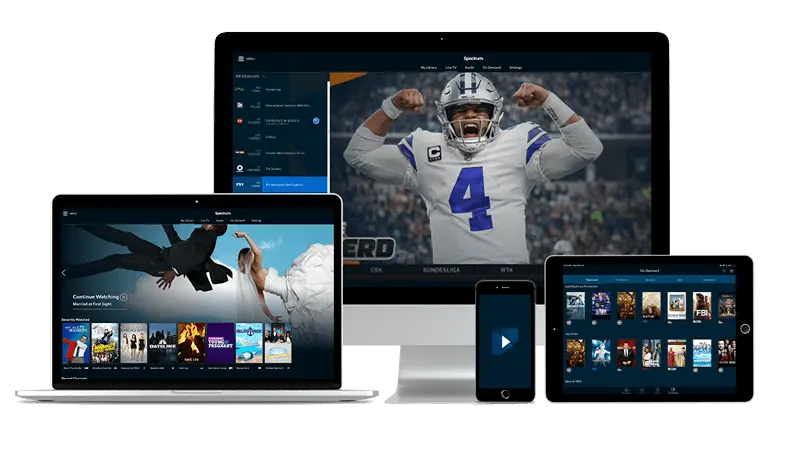
For households that use internet television across several devices — a smart TV in the living room, a phone, a tablet — a router-level filter is actually tidier than device-by-device controls, because one rule covers everything. If you want to explore what internet TV can offer alongside your filter setup, the Guru IPTV home page is a reasonable starting point.
If you are already streaming and looking to broaden what you watch, you might also find it useful to read about finding travel channels in the channel guide or how to find international channels from Africa every evening — both of which work through the same home internet connection a filter sits on.
When a router filter is not enough
Router filters are good at blocking domain names, but they have limits worth knowing.
They do not filter content within a site. If a video platform carries both suitable and unsuitable content, the router cannot distinguish between them — it sees only the domain. For that level of control, you need the platform's own parental settings or a dedicated browser extension on specific devices.
They can also be bypassed by anyone who knows to switch their device to a different DNS address manually, or who connects through a mobile data connection rather than your home Wi-Fi. A determined teenager will find this out quickly. For younger children who do not yet know these workarounds, router filters are reliable. For older ones, they are one layer among several.
For content that arrives through apps rather than browsers — including most streaming players — the filter applies as long as the device is on your Wi-Fi. Switch to mobile data and the router is out of the picture entirely.
None of this makes the filter useless. It stops casual access to unwanted content across the whole household with minimal effort. It just works best when you understand what it covers and what sits outside its reach. If you want to read more about how streaming television works in a typical home setup, Atlanta: streaming TV made simple covers the basics without assuming technical knowledge.